BACK
External Dynamic Sorting, Pagination & Filtering of Xano Data in Bubble
Wouldn’t it be nice if you could load tables with hundreds or thousands of rows from Xano, search through them and sort without having to use Bubble filters or creating a custom api call for each filter combination?
It is possible 😎💫
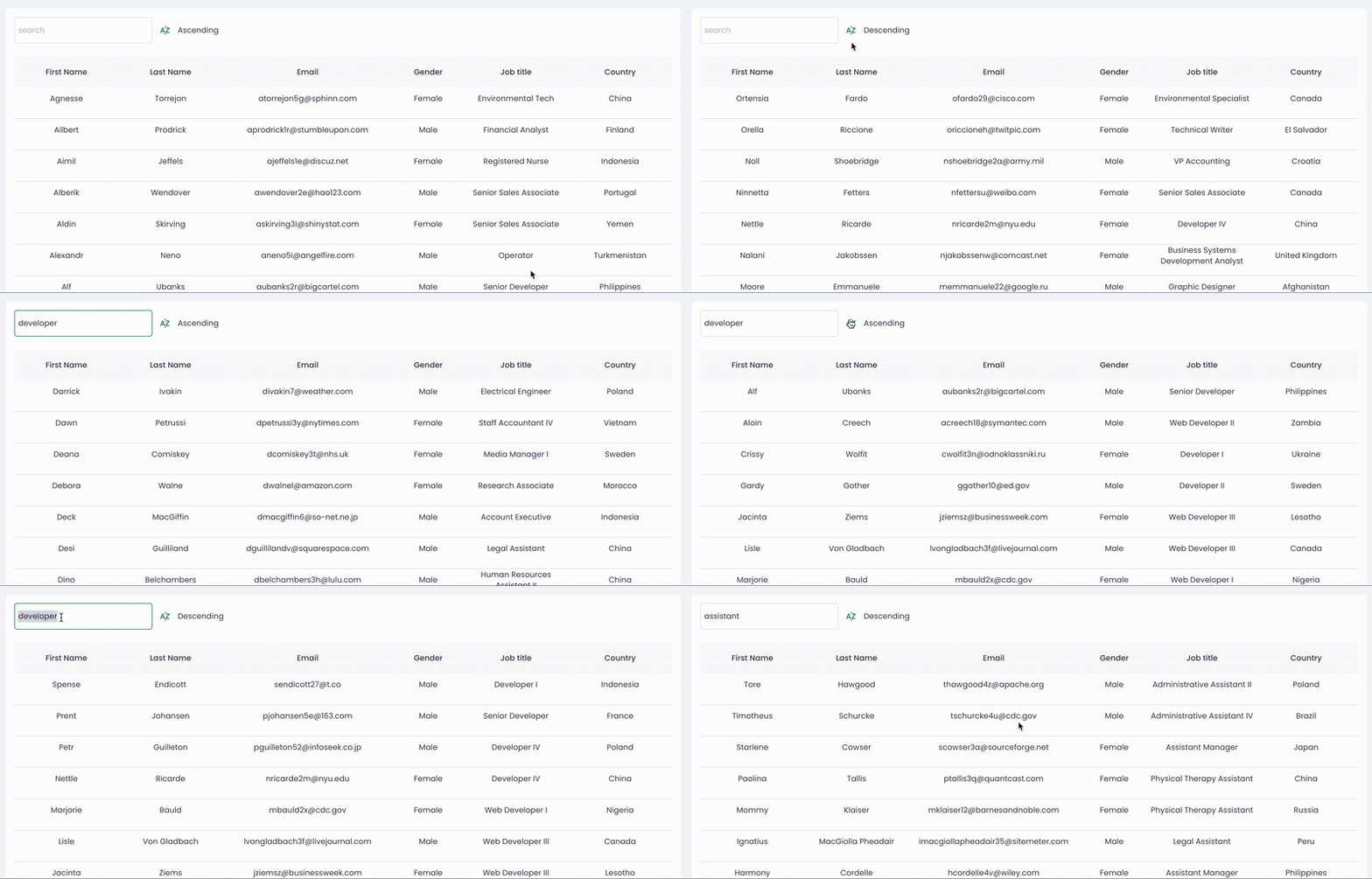
Let’s set it up together.
Xano Setup
➡️ Create api endpoint to get data from Xano DB to Bubble.

To set up dynamic pagination:
add an integer input that we will pass as a parameter from Bubble to tell Xano which page of data we need to fetch.
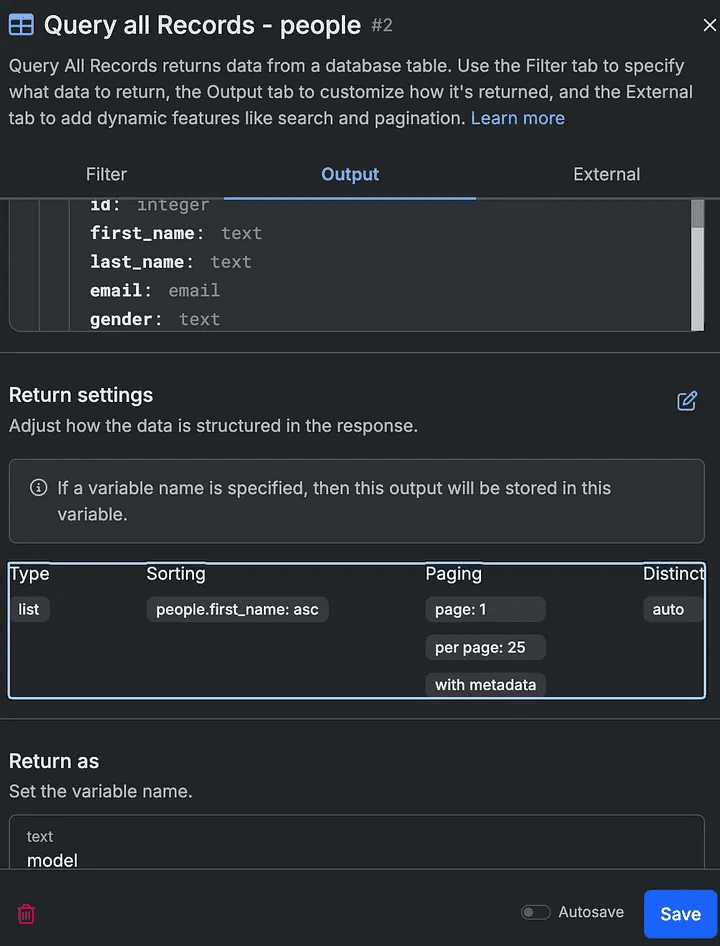
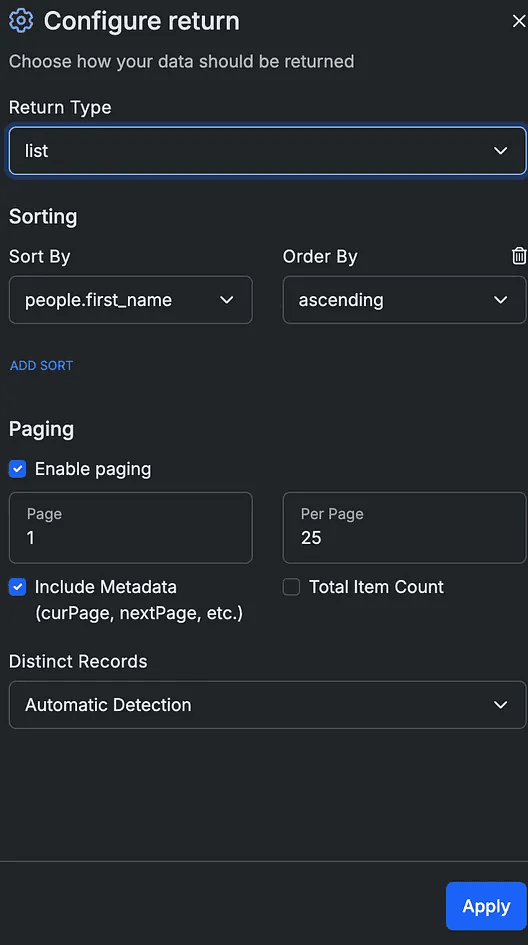
in the output tab of the Query function, enable sorting & pagination. You can sort by any field and order now, we will override it.
then in the external tab, select the input you created in the “Page” input.
Follow the config in the following screenshots by order
To fetch data filtered by keyword:
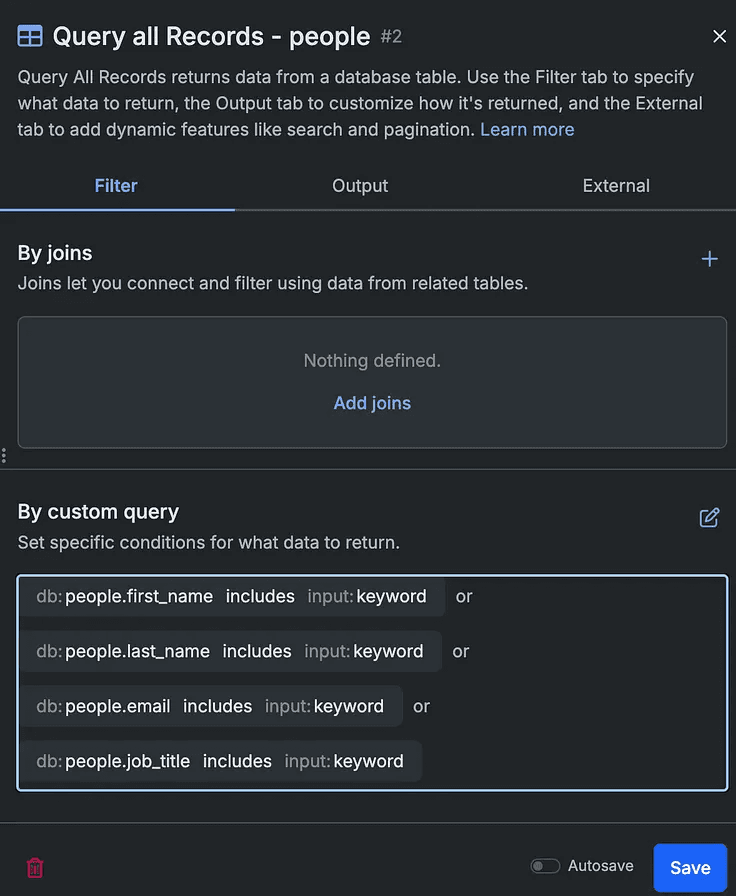
add a text input to use as a search keyword.
in the Filter tab of your Query function, select by custom query and filter all relevant fields by the “keyword” input you just created.
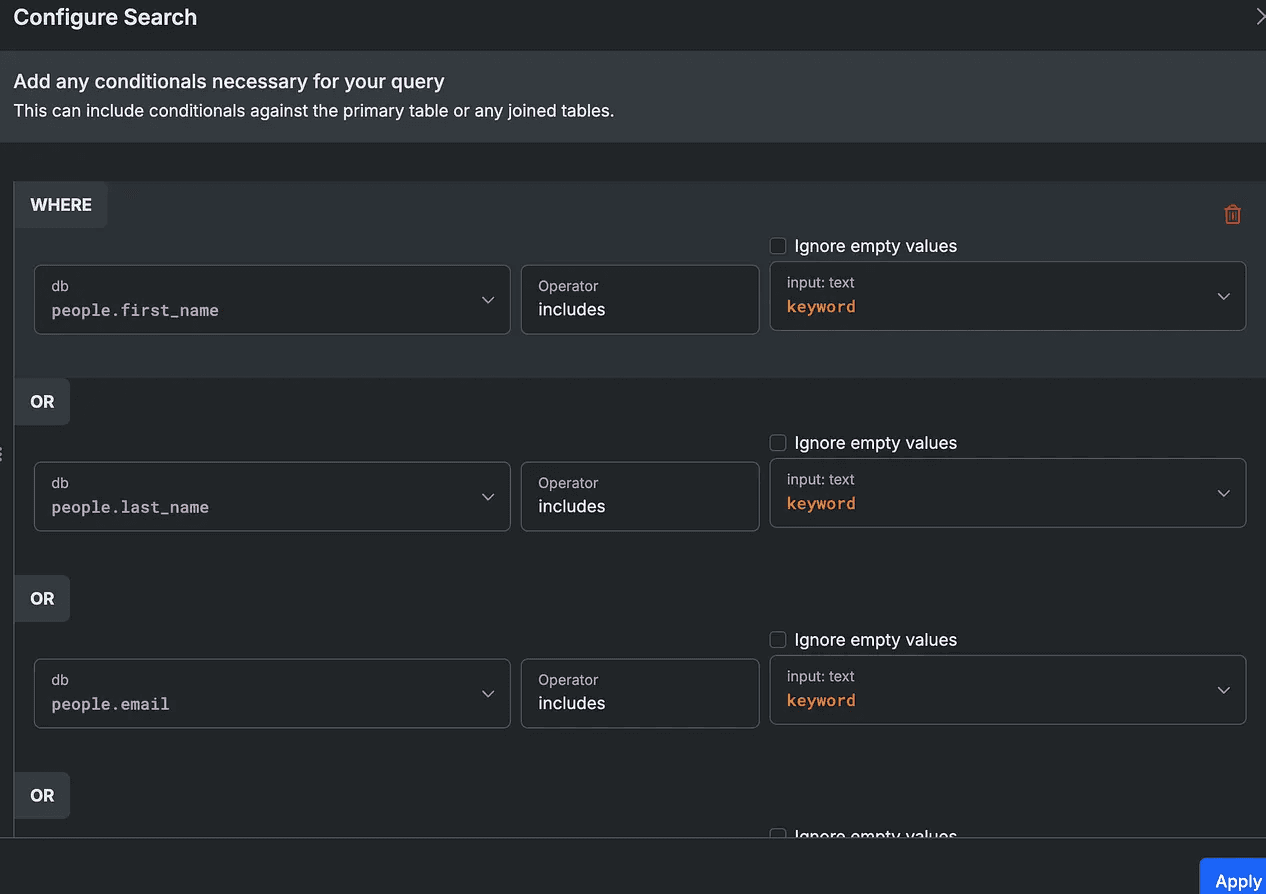
To set up external sorting
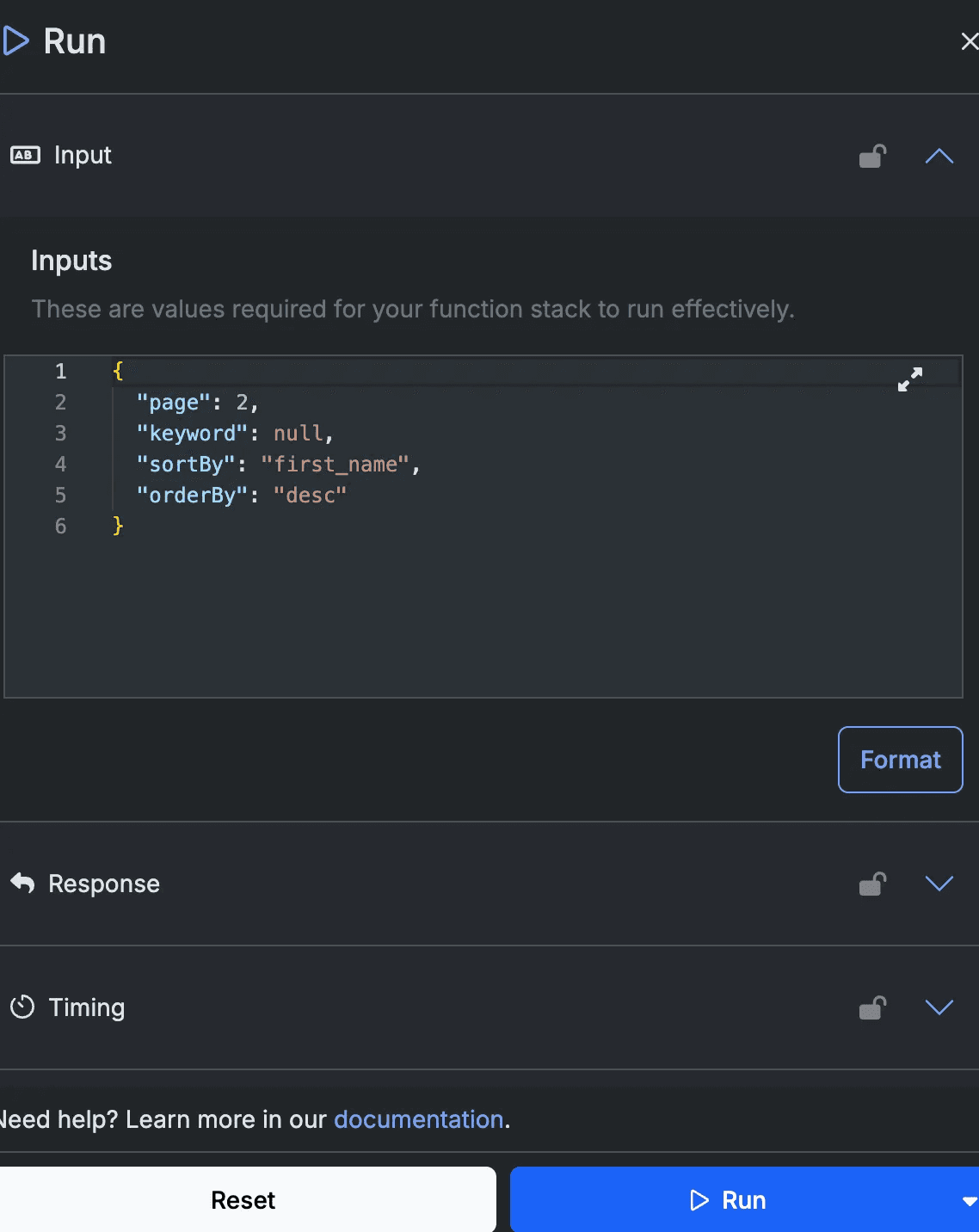
add two text inputs: sortBy and orderBy. These will allow us to sort the Data dynamically by any field from Bubble directly.
in your function stack, create a variable. Name it “external sort” for example and in the value input paste the following JSON structure. Don’t worry about the actual values we will change them.
click “set with filters” and select the relevant input we created in the first step for both.
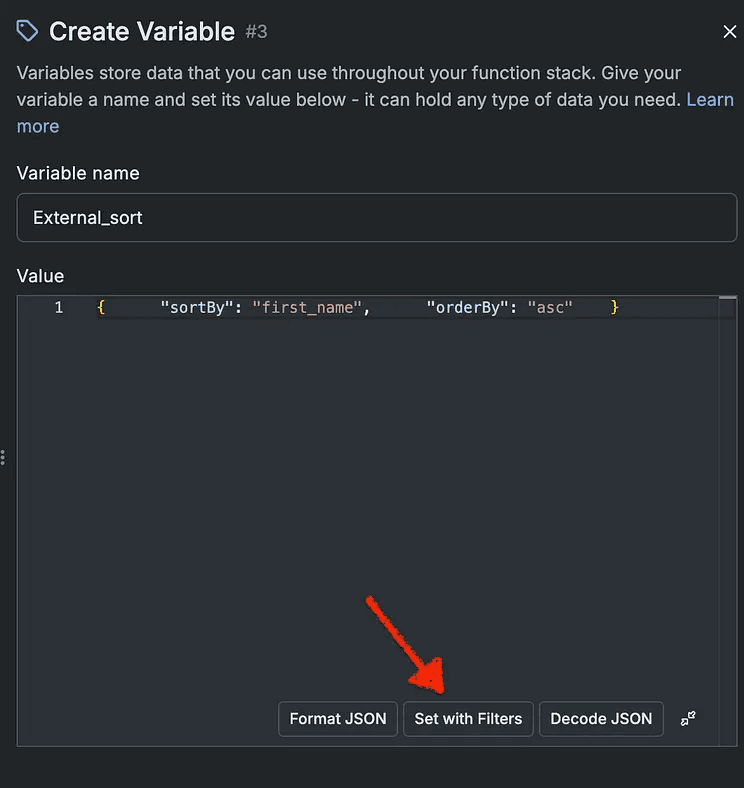
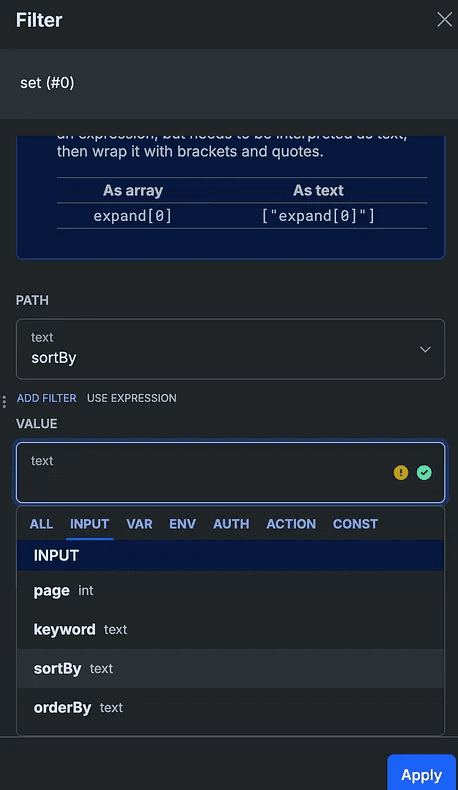
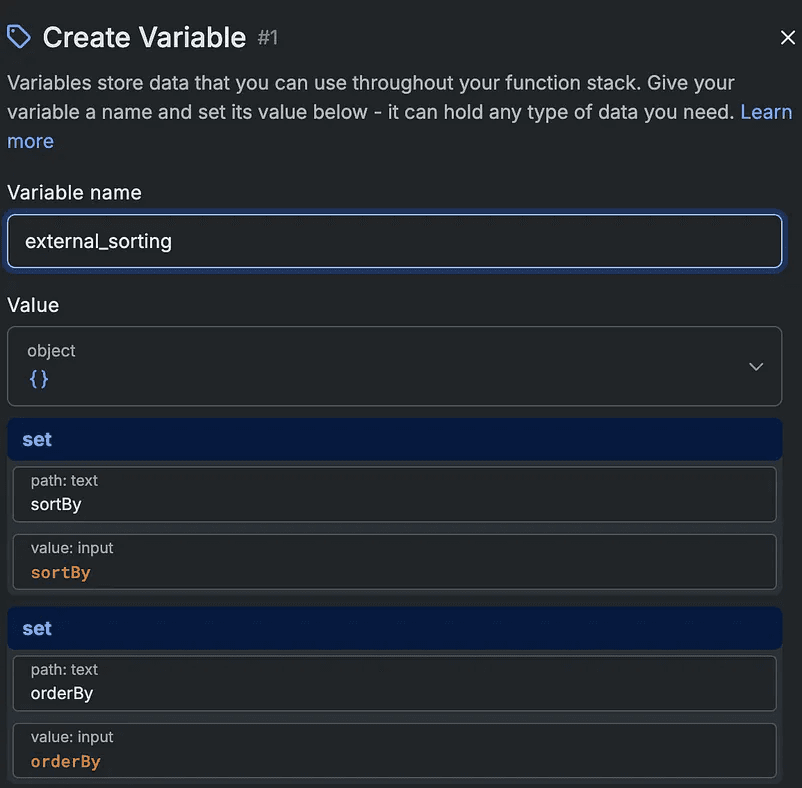
Then in the Query function, open the external tab and sort by the variable you created.
Switch to classic view on top right of External tap and select “classic”, make sure you allow overriding sort & pagination in permissions.
Bubble Setup
➡️ Plugins: Install the api connector & Xano connector plugins by Eli.
💡You can work without the Xano connector plugin but it saves so much WU since the calls go directly to Xano instead of calling Bubble first which is the case when you use the api connector normally.
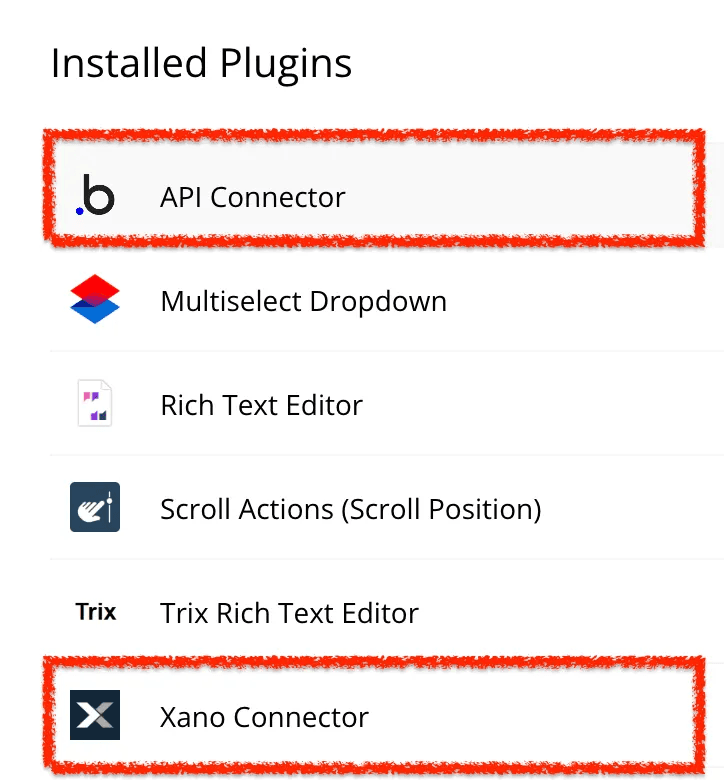
➡️ Datatype: Set up virtual datatype in api connector.
The RG where you display your Xanodata needs to have a set datatype and source, which will set up in the api connector as a virtual datatype.
create a new api in your api connector.
add a new call and name it something relevant to your datatype. In my example it is GET people.
Set up authentication as required by your app and go back to Xano.
Run the api call and copy the response.
Back in Bubble, click “Manually enter API response” and paste the response. Map the fields and you’re done.
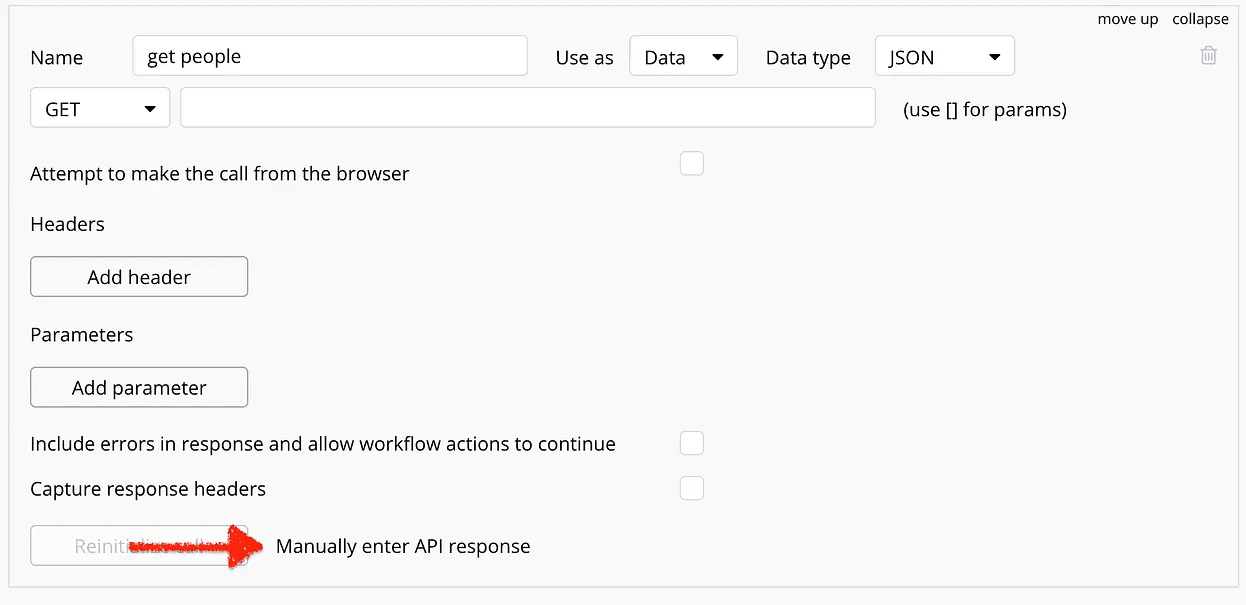
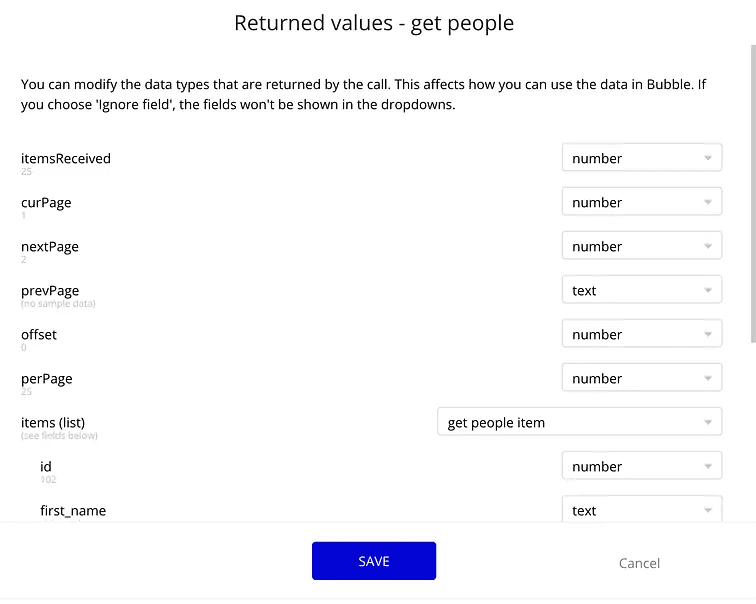
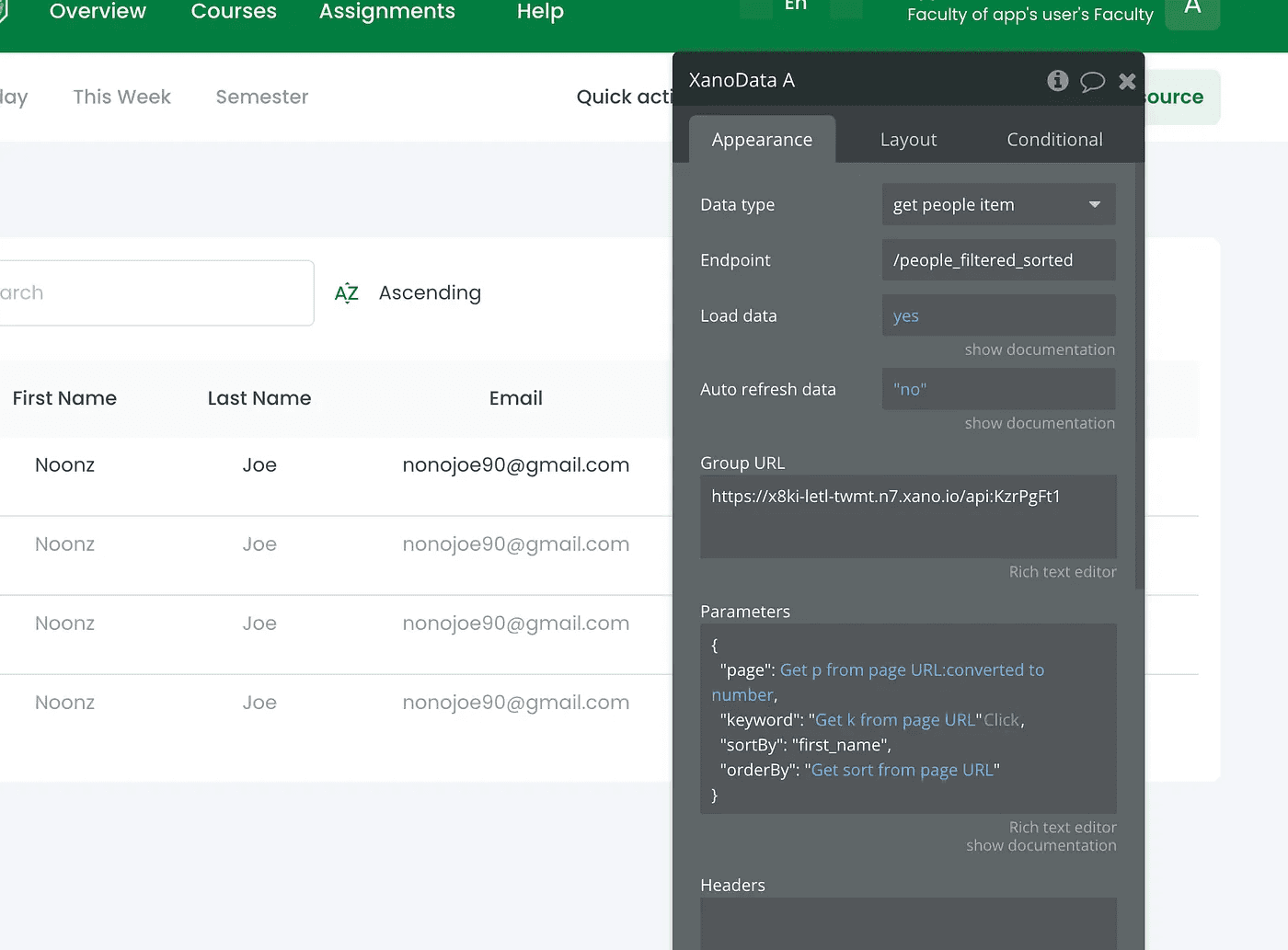
➡️ Xanodata setup: add a Xanodata element to your interface and set it up as follows. You can get the Group URL and parameters from Xano.
✅ It is important to know that our api call returns metadata like page number, number of items and the like beside the items themselves, so the datatype for our Xanodata element is get people item.
Note: In my interface, I pass all parameters in the URL for better UX, but you can use custom states if you want to.

➡️ The Table: Create a RG to display data in your Bubble interface.
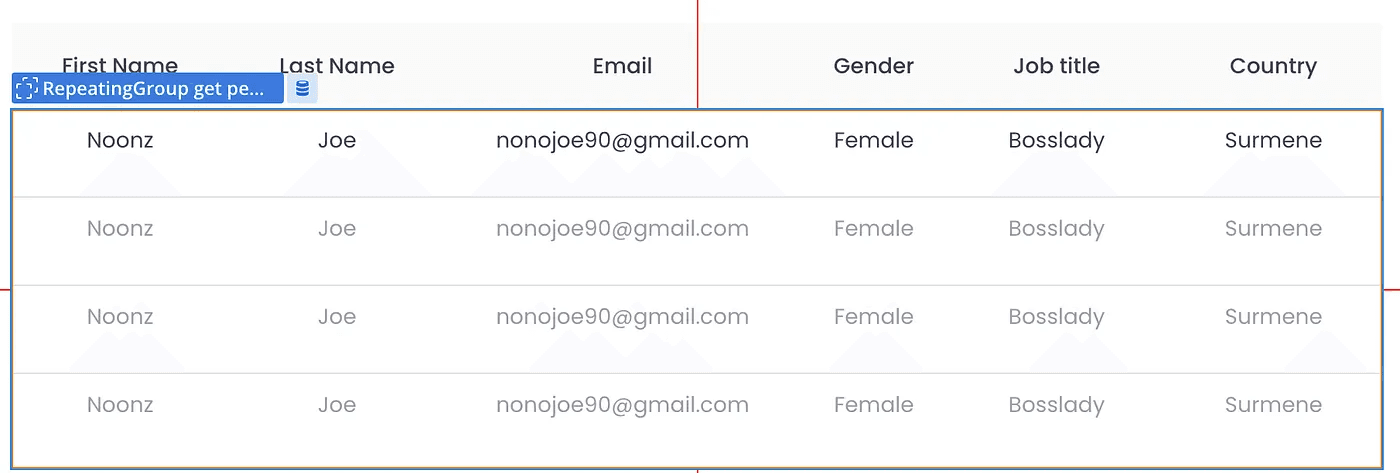
➡️ Connect Data to UI: Xanodata & RG datasource setup.
the datatype for our repeating group is get people item to match the type of Xanodata element.
now since all sorting and filtering and pagination is done on Xano side, all we need to do is pass those parameters to Xano when required. For example when the search inputs value changes or the user changes sorting, etc…
Looks more complex than it really is, doesn’t it?
Anyhow, I learned this working on my current project and wanted to share since I had to collect this from multiple sources and would have loved to see it explained somewhere. So enjoy.
‘till next time, lots of love and #keepbuilding and #keepdesigning 💙
Originally published on Medium.
More